
Updating DJIA Cache
Updating DJIA Cache keeps your licence, settings and cached files intact. The steps below cover both the automatic update from the WordPress dashboard and a manual update by re-uploading the plugin.
Keeping DJIA Cache up to date ensures you receive the latest performance improvements, feature enhancements, and security updates.
Here’s how to update it safely:
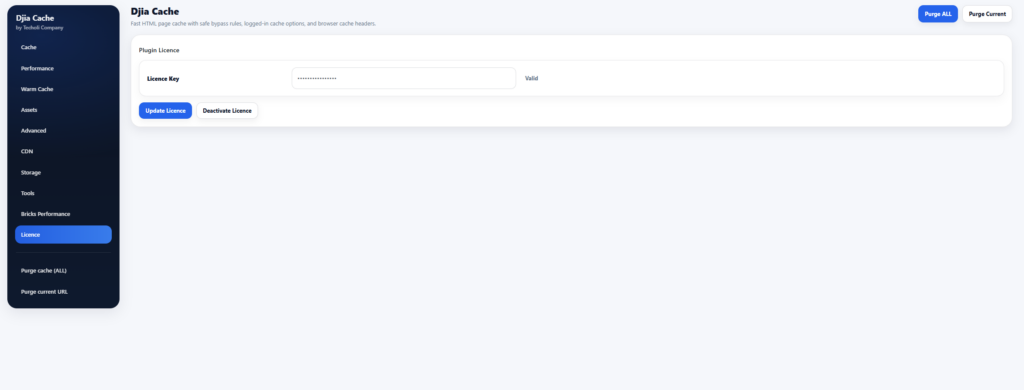
1. Automatic Updates
If your license is activated, DJIA Cache will notify you about new updates directly inside your WordPress dashboard.
To update automatically:
Go to:
Plugins → Installed Plugins
Find DJIA Cache and click Update Now when an update is available.
The update will install automatically and your settings will remain intact.
2. Manual Update
If automatic updates are not available, you can update DJIA Cache manually:
- Log in to your DJIA account.
- Download the latest plugin version (ZIP file).
- In WordPress, go to:
Plugins → Installed Plugins - Deactivate DJIA Cache.
- Click Delete (this will NOT remove your saved settings).
- Go to Plugins → Add New → Upload Plugin.
- Upload the new ZIP file.
- Click Install Now, then Activate Plugin.
All your settings and configurations will be preserved during the update process.
Important notes when updating DJIA Cache
- Your license must be active to receive update notifications.
- Always create a full site backup before updating on a live production website.
- For high-traffic sites, consider updating during low-traffic hours.
What happens to your settings
An update never resets your configuration. Settings, exclusion rules and the licence activation are stored separately from the plugin files, so they survive both automatic and manual updates. The cache itself is flushed on update, which is intentional: it guarantees that no page generated by the previous version is still being served.
If an update fails
If the dashboard reports a failed update, the usual causes are a file permission problem or a PHP memory limit too low for the unpacking step. Deactivate the plugin, upload the new version manually as described above, then activate it again. Your settings and licence stay in place.
Related documentation
Further reading: Managing plugins on WordPress.org.