
DJIA CACHE — FEATURES
DJIA Cache features built for real WordPress stacks
The WordPress cache plugin features below cover everything DJIA Cache does: full-page and logged-in user caching, warm cache preloading, asset and CSS/JS optimization, CDN delivery, and dedicated Bricks Builder tuning. Each module can be enabled on its own, so you only run what your site actually needs.
You can watch these modules working on a live site on the speed tests page, read how each one is configured in the documentation, or try them on your own site with the free 7-day trial from the pricing page. Building with Bricks? The Bricks Builder cache plugin page covers what changes on a Bricks site specifically.
On this page
WordPress cache plugin features by module
The plugin is split into six modules, and each one is a group of related options rather than a single switch. The caching engine stores pages and decides who is allowed to receive a stored copy. Performance optimization controls what the browser does with a page once it arrives. Asset optimization deals with the CSS and JavaScript themselves. The warm cache system keeps the store full so visitors rarely meet an empty cache. CDN delivery moves static files to an edge network. The Bricks module adds the preload hints a builder-made layout needs. The groups below are in the same order as the tabs in the plugin dashboard, so this page and the settings screen read the same way.
Which features to enable first
Not every module belongs on every site, and switching them all on at once is the fastest way to break a layout you then have to debug. The order that works on almost any stack is: page caching first, then browser cache headers, then asset caching and compression, then the front-end work — lazy loading, LCP preload and font handling — and only then the parts that rewrite or delay code, such as JavaScript optimization, delay JS and CSS combination.
Page caching alone usually produces the largest single improvement in time to first byte, because it removes PHP and database work from the request entirely. Everything after it is about how quickly the browser can paint what it received. Testing after each step takes a few minutes and means that when something does change visually, you already know which option caused it.
CACHING ENGINE
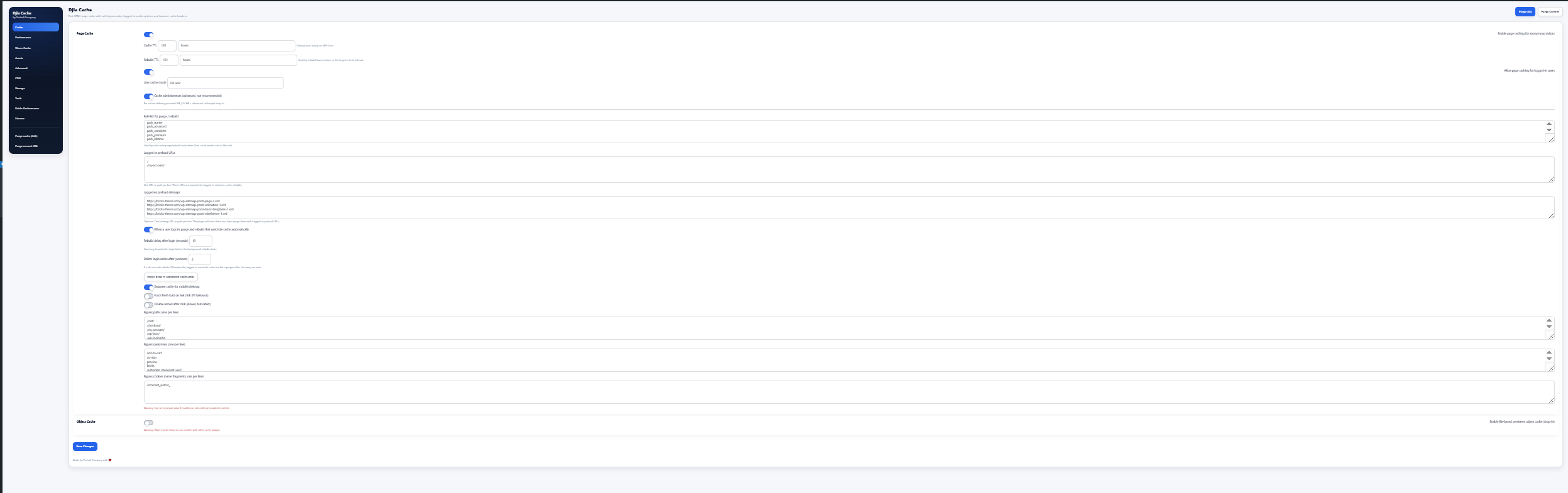
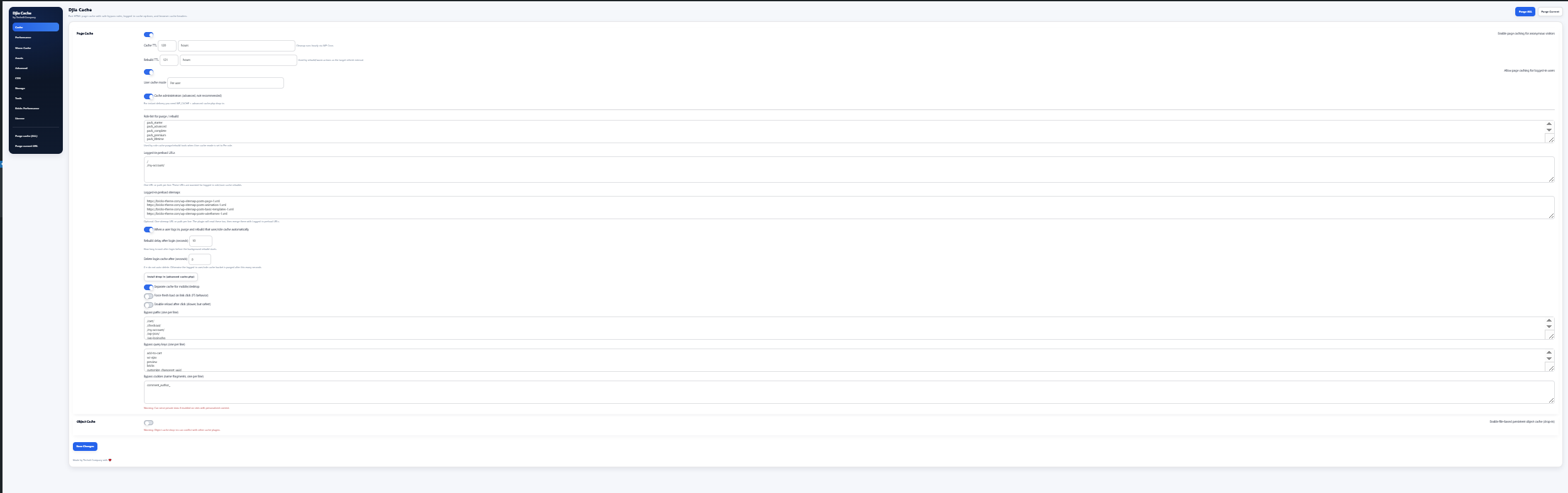
Stores pages and decides who may receive a stored copy — anonymous visitors always, logged-in users when you enable it, with separate buckets per role and device.
Page Cache
Generate optimized static HTML versions of pages and serve them instantly to anonymous or logged-in users with advanced bypass controls.
Logged-In User Caching
Cache content separately for authenticated users while preventing session conflicts and mixed HTML issues.
Smart Cache TTL
Define custom cache expiration times with automatic cleanup via WP-Cron.
Mobile/Desktop Cache Separation
Create separate cache buckets for different devices to ensure layout accuracy and performance.
Advanced Bypass Rules
Exclude specific paths, query parameters, and cookies to protect dynamic areas like cart, checkout, and API endpoints.
Object Cache (Persistent Drop-In)
Enable file-based persistent object caching to reduce database queries and backend load.
PERFORMANCE OPTIMIZATION
Page caching decides how fast the server answers. This group decides how fast the browser can paint the answer it received.
Browser Cache Headers
Send optimized Cache-Control headers for static and dynamic content.
Core Web Vitals Optimization
Built-in optimizations targeting LCP, CLS, and loading behavior improvements.
Lazy Loading (Images & iFrames)
Enable native lazy-loading and decoding optimizations to reduce initial payload size.
WordPress Cleanup
Disable unnecessary features such as emojis, embeds, and Dashicons for guests.
DNS Prefetch & Resource Hints
Preconnect and preload critical external resources like fonts and CDN endpoints.
ASSET OPTIMIZATION
The only group that rewrites what the browser receives. Caching and compression are safe from day one; the code-rewriting options need testing after each change.
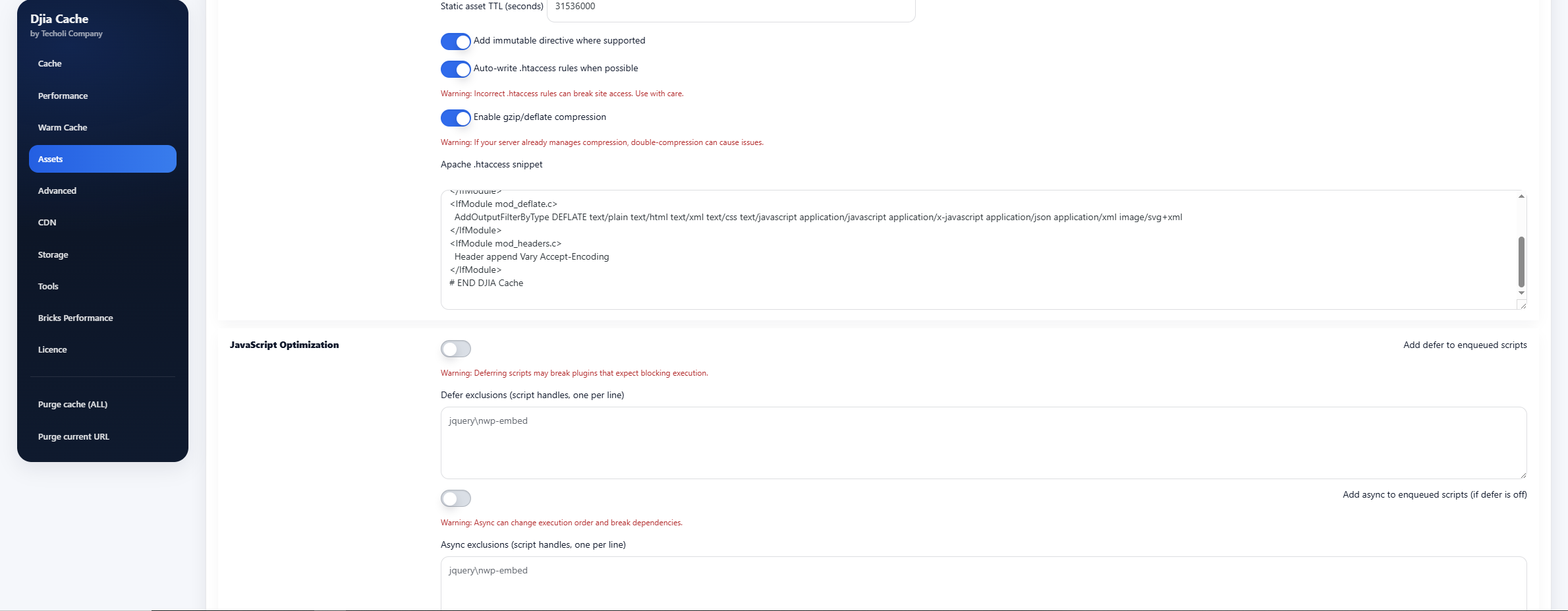
Static Asset Caching
Set long-term caching for CSS, JS, fonts, and images with immutable directives.
Gzip / Deflate Compression
Enable server-level compression to reduce transfer size.
JavaScript Optimization
Add defer or async to scripts safely with exclusion control.
Delay JS (HTML Rewrite Engine)
Rewrite script tags in final HTML output to delay non-critical JavaScript execution.
CSS Optimization
Inline critical CSS and optionally delay non-critical styles.
CSS Exclusions & Handle Control
Exclude specific handles or disable styles globally to prevent conflicts.
HTML / CSS / JS Minification
Reduce file size by removing unnecessary whitespace and comments.
WARM CACHE SYSTEM
A cache only helps the visitor who arrives after it is built. Preloading and prefetch make sure that visitor is a bot rather than a customer.
Hover Warm Cache (Prefetch)
Preload pages when users hover or touch links for near-instant navigation.
Login / Logout Purge Control
Automatically purge cache when user authentication state changes.
Logged-In Warmup
Warm cache buckets specifically for authenticated sessions.
Sitemap Preload
Preload URLs via sitemap to ensure high-traffic pages stay cached.
Warm Limits & Exclusions
Control maximum warm requests and exclude specific patterns.
CDN & DELIVERY
Moves static files to an edge network so distance stops mattering, and decides which crawlers are allowed to consume your bandwidth.
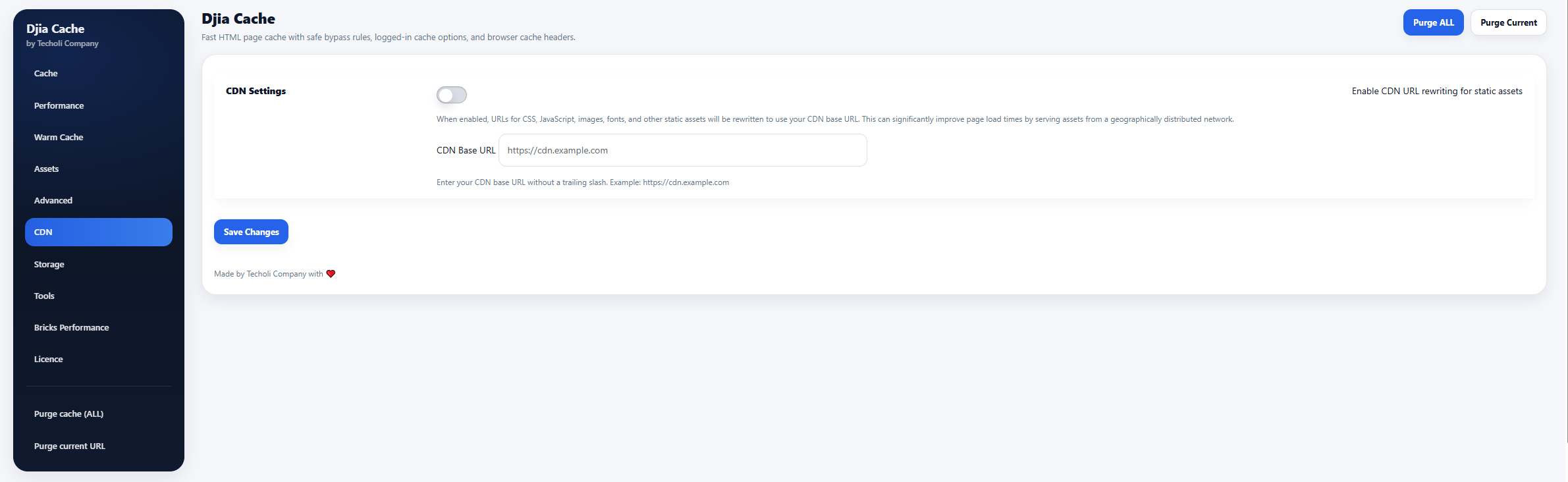
CDN URL Rewriting
Rewrite static asset URLs to your CDN endpoint automatically.
AI Crawler Control (robots.txt integration)
Block common AI crawlers directly via WordPress robots output.
BRICKS PERFORMANCE
Bricks hides its largest element inside generated CSS, so the browser finds it late. This module preloads it directly.
LCP Preload for Bricks
Preload LCP candidate images including background hero sections.
Featured Image Boost
Use featured images automatically as LCP priority assets.
Extra LCP URLs
Manually define additional assets to preload for complex layouts.
Debug Mode
Enable HTML debug comments for performance diagnostics.
How each module works in detail
The six groups above are the shape of the plugin dashboard. What follows is what each one actually does once it is switched on, in the order you would enable them.
Caching engine
For anonymous visitors the decision is simple: the first request builds the page, writes it to disk as static HTML, and every request after it is served from that file without touching PHP or the database. That is where most of the improvement in time to first byte comes from.
Logged-in traffic is the harder case. Serving one visitor’s cached page to another is how you end up with the wrong name in the account menu or a stale cart total. DJIA Cache keeps authenticated pages in their own buckets, separates mobile from desktop, and lets you exclude the paths, cookies and query parameters that must always stay dynamic. The persistent object cache sits underneath it all, holding query results between requests so that even the pages you never cache cost less to build.
TTL is set per bucket, so a members area that changes hourly does not have to share an expiry with a blog archive that changes twice a month. Purging is tied to the events that actually invalidate a page rather than clearing everything on every save.
Performance optimization
Cache-Control headers tell the visitor’s browser, and any proxy in between, how long they may reuse a file, which is what turns a second visit into almost no network traffic. Resource hints give the browser a head start on the handful of external origins a page genuinely depends on, usually a font host and a CDN.
The Core Web Vitals options target what Google actually measures: how quickly the largest element appears, how much the layout moves while it loads, and how soon the page responds to input. Lazy loading keeps images and iframes below the fold out of the initial request, and the cleanup options strip out the parts of WordPress that load on every page whether or not the site uses them — emoji scripts, oEmbed discovery, Dashicons for visitors who are not logged in. None of this changes how the site looks.
Asset optimization
Long-term caching of CSS, JavaScript, fonts and images is safe and worth doing immediately — immutable directives mean a returning visitor re-downloads nothing that has not changed. Compression is equally safe: Gzip or Deflate at the server level typically cuts text assets to a fraction of their size.
The options after that are where testing matters. Deferring or asyncing scripts changes execution order. Delay JS rewrites script tags so non-critical JavaScript does not run until the visitor interacts with the page, which is excellent for embeds and analytics and poor for anything that renders content. Inlining critical CSS removes the render-blocking request, and delaying the rest can produce a brief unstyled flash if the critical set is incomplete. Each option has its own exclusion list for exactly that reason.
Warm cache system
Sitemap preloading walks the URLs your sitemap publishes and requests them in the background, so the pages you care about are cached before anyone asks for them. Hover prefetch fetches the next page before the visitor commits to the click. Purge control ties the whole thing to authentication, and the warm limits keep the preloader from behaving like traffic of its own on shared hosting.
CDN and delivery
The plugin replaces local asset URLs in the final HTML with your CDN hostname, including assets a theme or builder prints inline, so there is nothing to configure per plugin or per template. Any provider that pulls from your origin and serves the same paths will work. The robots.txt integration lets you refuse the AI crawlers that now account for a visible share of requests, without editing a file your host may overwrite.
Bricks performance
A hero section with a background image is the usual case: the image is referenced from a stylesheet rather than an img tag, so the browser only learns about it after the CSS has been parsed. This module identifies the LCP candidate, including background images, and emits a preload hint in the head. Featured images can be promoted automatically, and where the heuristic picks the wrong element you can name the URLs yourself. Debug mode prints the decision as an HTML comment.
What to measure after each module
Enabling an option and looking at a score is not a test. The score moves for several reasons at once, and on a live site it moves between two runs of the same page. What makes a change readable is knowing which number each module is supposed to affect, and checking that one.
After page caching
Watch time to first byte on a page you have loaded once already, so the entry exists. It should drop to whatever your server needs to read a file from disk. If it does not move, something is bypassing the cache — usually a cookie, a query parameter, or a session the theme starts on every request. The storage view tells you whether the entry was written at all, which settles the question in seconds.
After browser cache headers
Load the page twice and compare the number of network requests. The second load should request almost nothing beyond the document itself. If assets are still being fetched, the headers are not reaching the browser, which on most stacks means the server is overriding them.
After lazy loading and preload
Largest contentful paint is the number here, and it moves for a different reason than time to first byte: not because the server is faster, but because the browser discovered the important image sooner. A page can have an excellent first byte and a mediocre LCP at the same time, and on builder-made layouts that combination is the normal starting point.
After the code-rewriting options
These are the ones to test by looking rather than by measuring. Load the pages that matter, in a logged-out browser and a logged-in one, and click the things visitors click: the menu, the cart drawer, a filter, a form. Delay JS and critical CSS change when code runs, and the failure mode is a control that does nothing rather than a number that moves.
After everything
Leave it for a week and look at the field data in Search Console rather than another lab run. Lab scores measure one simulated device on one connection; field data measures the people who actually visit, on the hardware they actually own. When the two disagree, the field data is the one that counts.
How the modules work together on one site
Read one at a time, each group above looks like a separate tool. In practice they form a sequence, and the order is what keeps a site stable. Page caching comes first and does the heavy lifting. Browser cache headers come next because they cost nothing and change nothing visually, and asset caching and compression follow for the same reason. Only once those are in place is it worth touching the front-end options that alter how a page is built — lazy loading, LCP preload, critical CSS — and the code-rewriting options last of all.
The reason for that order is diagnostic rather than technical. If you enable everything at once and a layout breaks, you have thirty options to work through. If you enable one group at a time and load the pages that matter after each, the option that caused it is the one you just changed. On a WooCommerce site that means checking cart, checkout and account pages specifically, since those must never be served from cache. On a Bricks site it means opening a page in the builder after every change, because the builder is where a bad asset rule shows up first.
Hosting matters too, and not always in the direction people expect. A server with its own page cache can conflict with the plugin’s, and some managed hosts already handle compression and cache headers at the edge. Where that is the case, the right configuration is fewer modules rather than more, and the hosting notes cover the stacks where it comes up.
What the plugin deliberately does not do
There is no image conversion, resizing or WebP generation here, and no font subsetting. Those jobs belong to tools that own the media library or the build step, and a caching plugin that also rewrites your images is a caching plugin you cannot remove later without consequences. There is no database cleanup either, for much the same reason: it is a different kind of operation with a different risk profile, and it has nothing to do with how fast a page is delivered.
There is also no attempt to guess what your site needs. Every module ships off, every option has a documented default, and nothing is enabled behind your back during an update. That is deliberate: a performance plugin that changes behaviour on its own is impossible to debug six months later when something breaks and nobody remembers what changed.
What there is instead is a written record of what every option does, including the ones that can change how a page renders. Each module is documented option by option in the documentation, with the exclusions and the known conflicts written down rather than discovered. The seven-day trial runs the whole plugin on your own site without a card, which is the only test that settles anything: a score on somebody else’s demo site is measuring their stack, not yours.