
Uninstalling DJIA Cache
Uninstalling DJIA Cache takes four steps. Follow them in order and no cache files, generated assets or drop-ins are left behind on your WordPress site.
If you want to completely remove DJIA Cache from your website, follow the steps below.
Follow the steps below to uninstall DJIA Cache cleanly, so that no cache files, database options or drop-ins are left behind on your WordPress site.
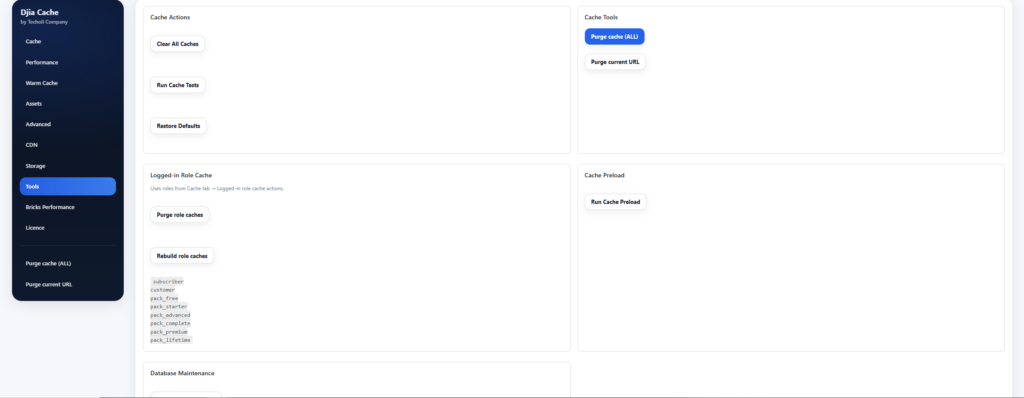
1. (Optional) Purge All Cache
Before uninstalling, you can clear all cached files and generated data.
Go to:
Settings → DJIA Cache
Click Purge All Cache to remove cached files and temporary optimization data.
This step is optional but recommended.
2. Deactivate the Plugin
In your WordPress dashboard, go to:
Plugins → Installed Plugins
Find DJIA Cache and click Deactivate.
3. Delete the Plugin
After deactivation, click Delete.
This removes all DJIA Cache plugin files from your server.
All plugin settings and stored configuration data will also be removed from the database.
4. Manually Delete Cache Folder (If Needed)
DJIA Cache may leave the cache directory intact to prevent issues during deletion on large sites.
If you want to completely remove all generated files, manually delete:
/wp-content/cache/djia-cache/
You can remove it using:
- File Manager (cPanel / hosting panel)
- FTP
- SSH access
Important notes when uninstalling DJIA Cache
- Reinstalling DJIA Cache will require re-entering your license key.
- Previous settings will not be restored automatically after full deletion.
- The cache folder is not always automatically removed to avoid file system errors on certain hosting environments.
What is removed and what stays
Deleting the plugin removes its files, its cache directory and the drop-ins it installed. What it cannot remove for you are files written outside the plugin folder by a manual configuration: a rule block added to your .htaccess or nginx config, and any constant you added yourself to wp-config.php. Check both if you configured the plugin by hand at any point.
Your licence activation is separate from the site. Deleting the plugin does not release the slot, so if you are removing the plugin in order to use the licence somewhere else, release the site from the licence portal as well.
Related documentation
Further reading: Managing plugins on WordPress.org.