
DJIA Cache – CDN Tab
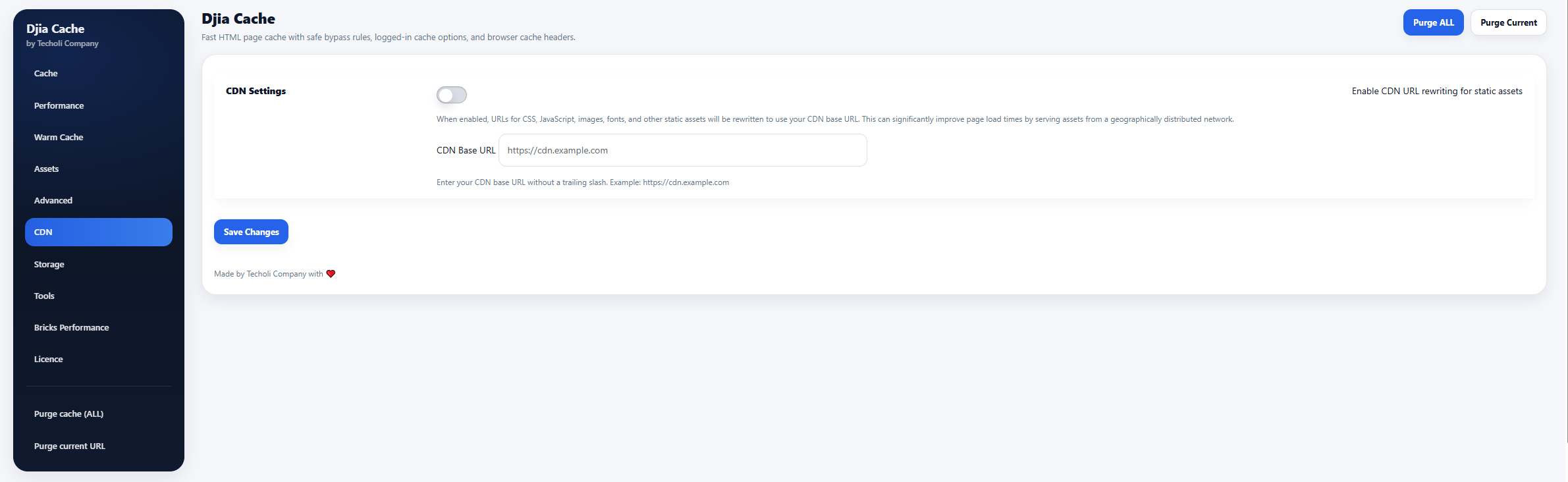
The CDN tab allows you to configure a Content Delivery Network (CDN) for serving static assets such as CSS, JavaScript, images, and fonts.
Using a CDN can significantly improve page load times by delivering assets from servers located closer to your visitors.
Sections included in this tab:
CDN configuration in the CDN tab
Follow these steps to enable CDN support in DJIA Cache.
Step 1 — Open the CDN settings
Navigate to:
Settings → DJIA Cache → CDN
This tab contains the options required to enable CDN URL rewriting for static assets.
Step 2 — Enable CDN URL rewriting for static assets
When enabled, DJIA Cache automatically rewrites the URLs of static assets to use your CDN domain.
Affected assets include:
- CSS files
- JavaScript files
- images
- fonts
- other static resources
Example:
Original asset URL:
https://example.com/wp-content/themes/theme/style.css
Rewritten CDN URL:
https://cdn.example.com/wp-content/themes/theme/style.css
Benefits:
- faster asset delivery
- reduced server load
- improved global performance
Step 3 — CDN Base URL
Enter your CDN base URL.
Example:
https://cdn.example.com
Important notes:
- Do not include a trailing slash
- The CDN must mirror your website’s asset paths
- Ensure the CDN can access files from your WordPress installation
Step 4 — Save changes
Click Save Changes to apply the CDN configuration.
Once enabled, DJIA Cache will automatically rewrite eligible asset URLs to use the configured CDN.
Best practices when using a CDN
- Ensure your CDN properly caches static files
- Avoid caching dynamic HTML responses unless configured correctly
- Purge CDN cache when updating static assets
- Test your site after enabling CDN rewriting
Verifying that the CDN is actually serving assets
After saving, open the front end and look at the page source, or the Network panel of your browser developer tools. Images, CSS and JavaScript should now be requested from your CDN hostname rather than from your own domain. If they are still coming from your domain, the rewrite has not applied: purge the cache and reload, because rewriting is applied when a page is generated, not when it is served.
One exception is worth remembering: URLs written inline by JavaScript at runtime are not rewritten, because the HTML is already delivered by then. Those assets keep loading from your origin, which is normal and does not indicate a misconfiguration.
Related documentation
Further reading: Cloudflare caching documentation.