
DJIA Cache – Assets Tab
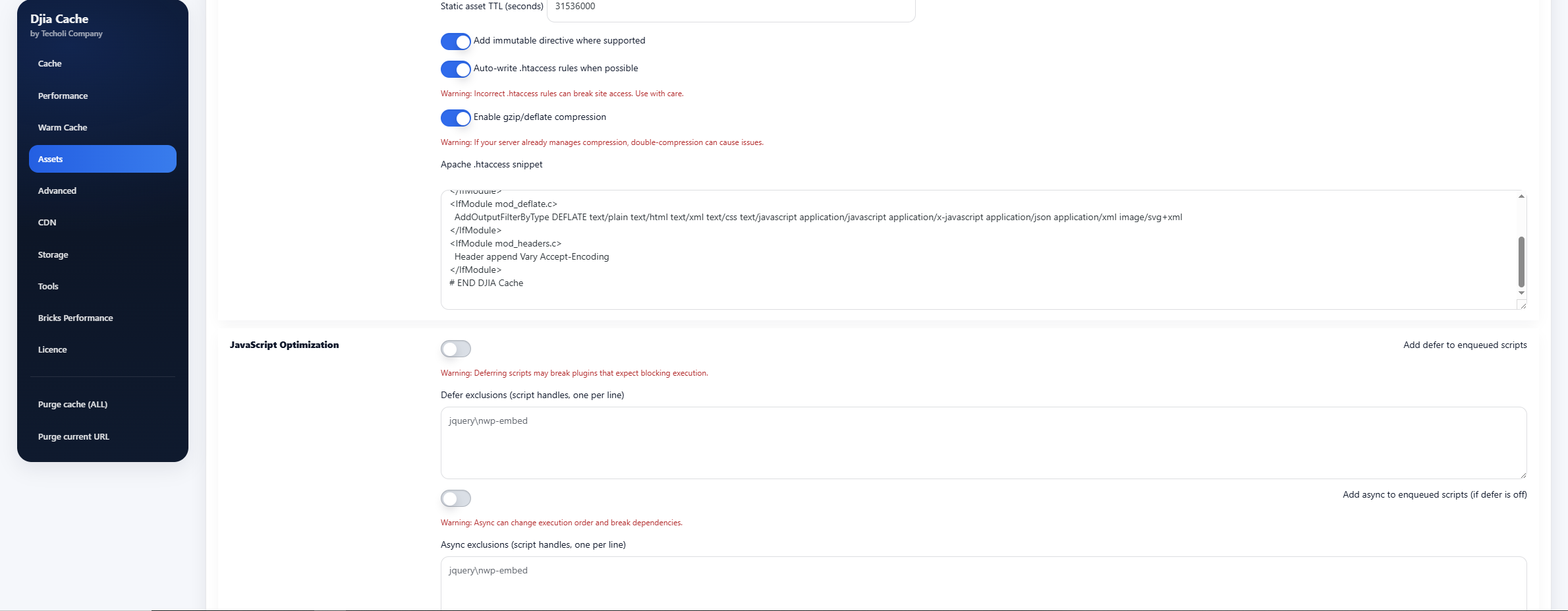
The Assets tab contains settings for optimizing static files such as CSS, JavaScript, fonts, and images. These optimizations reduce render-blocking resources, improve caching efficiency, and help achieve better performance scores in tools like Google PageSpeed Insights.
Sections included in this tab:
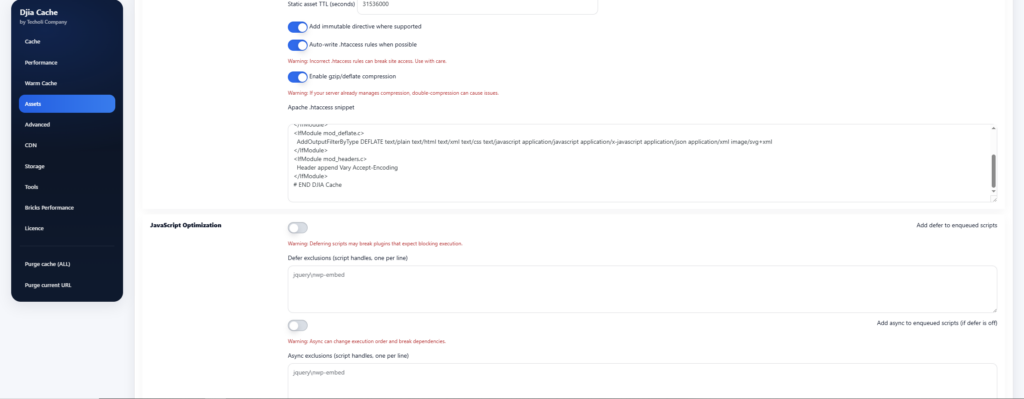
Static asset caching in the Assets tab
Enable browser caching for WordPress/theme/plugin assets
Enables long-lived browser caching headers for static assets.
These include:
- CSS files
- JavaScript files
- images
- fonts
When enabled, browsers can reuse previously downloaded assets instead of requesting them again.
Benefits:
- faster repeat visits
- fewer server requests
- improved loading performance
Static asset TTL (seconds)
Defines how long static assets should remain cached in the browser.
Example:
31536000
This equals 1 year of caching.
Long cache lifetimes are recommended for assets that rarely change.
Add immutable directive where supported
Adds the immutable directive to cache headers.
Example header:
Cache-Control: public, max-age=31536000, immutable
This tells browsers that the asset will never change during its lifetime, allowing them to skip revalidation checks.
Benefits:
- fewer conditional requests
- improved browser performance
Auto-write .htaccess rules when possible
Automatically writes caching rules to the .htaccess file if it is writable.
⚠ Warning:
Incorrect .htaccess configuration can break site access.
Only enable this if you understand how your server handles Apache configuration.
Enable gzip/deflate compression
Enables gzip or deflate compression through web server rules.
Compression reduces file sizes for:
- HTML
- CSS
- JavaScript
Benefits:
- smaller downloads
- faster page loading
⚠ Warning:
If your server already manages compression, enabling this again may cause double compression issues.
JavaScript Optimization
Controls how enqueued scripts are loaded, and how much of the JavaScript on a page is allowed to block rendering.
Add defer to enqueued scripts
Adds the defer attribute to enqueued scripts so they no longer block HTML parsing and run in order once the document is parsed. Warning: deferring can break plugins that expect a script to execute immediately, so test forms, sliders and menus after enabling it.
Defer exclusions
One script handle per line. Handles listed here keep loading normally. This is where you put the one script that a plugin needs to run before everything else.
Add async to enqueued scripts
An alternative to defer, used only when defer is switched off. Async scripts run as soon as they finish downloading. Warning: async changes execution order, so a script that depends on another can run before it and fail.
Async exclusions
One script handle per line, for scripts that must not be loaded asynchronously.
Delay JS
Delay JS rewrites the script tags in the final HTML so that non-essential JavaScript only executes after the first user interaction, or after a fallback timeout. It is usually the single largest improvement to Total Blocking Time and First Contentful Paint, and also the option most likely to need exclusions.
Enable Delay JS (HTML rewrite)
Turns the HTML rewrite engine on. Warning: delaying scripts can break features that must run immediately. Start in safe mode and add exclusions rather than switching the whole feature off at the first problem.
Mode
Safe delays external scripts only and is the recommended starting point. Aggressive delays inline scripts as well, which wins more but is much more likely to affect a slider, a cookie banner or a form.
Fallback timeout (ms)
Scripts are executed automatically after this many milliseconds even if the visitor never interacts with the page. It guarantees that nothing stays permanently unexecuted for a visitor who only scrolls.
Also delay jQuery
jQuery is excluded by default for safety, because so much on a typical WordPress site depends on it. Delaying it as well is a bigger win, but enable it only after testing sliders, menus and forms.
Delay exclusions
One keyword per line. Any script whose URL or inline content matches a keyword is executed normally instead of being delayed.
Resource Hints
Resource hints help browsers establish early connections with external resources.
Preconnect URLs
Defines origins for preconnect.
Example:
https://fonts.gstatic.com
https://cdn.jsdelivr.net
Preconnect allows browsers to prepare:
- DNS lookup
- TCP handshake
- TLS negotiation
before resources are requested.
Preload font URLs
Defines font files to preload early.
Example:
/wp-content/themes/theme/fonts/font.woff2
Preloading fonts prevents delays during text rendering.
Preload CSS URLs
Defines CSS files to preload before page rendering.
Example:
/wp-content/themes/theme/style.css
This ensures critical stylesheets load earlier.
CSS Optimization
Controls how stylesheets are delivered: what is inlined, what is combined, what is removed and what is delayed.
Inline critical CSS
Generates the CSS needed for the header and the above-the-fold area and inlines it in the page, so the first paint does not wait for an external stylesheet. You can set the maximum size of the generated critical CSS, the size of the HTML sample used to detect above-the-fold content, a safelist of tokens that must always be kept, and URL exclusions for pages where auto-generation should not run.
Combined CSS bundle
Combines local CSS files into one shared bundle and optionally preloads it, which removes a series of separate requests. Handles or URL substrings can be excluded from the bundle, and old bundle files can be deleted automatically after a number of days.
Page-type CSS unload
Removes selected CSS handles or URL substrings only on the page types where they are not needed — on the front page, on non-WooCommerce pages, or on pages without forms. It is safer than delaying CSS globally, because the rule is scoped to a page type rather than applied everywhere.
Delay CSS loading
Loads non-excluded stylesheets in a non-blocking way. It can also be applied automatically to any post that already has Used CSS generated for it.
Auto-generate Used CSS
Detects the CSS a page actually uses and removes the rest. This is the largest render-blocking win available here. The scope can be limited to static pages, which is the recommended setting, or applied to all pages, which is more aggressive and needs testing.
Disable CSS handles globally
One handle per line, for stylesheets that should never be loaded anywhere on the site.
Minification
Minification removes unnecessary characters from code to reduce file sizes.
Minify HTML
Removes whitespace and comments from HTML output.
Benefits:
- smaller page size
- faster downloads
Minify CSS files
Creates minified CSS files and stores them in the cache.
Benefits:
- reduced CSS file size
- faster loading
Minify JS files
Creates minified JavaScript files stored in the cache.
Benefits:
- reduced JavaScript size
- improved script loading performance
Extra Optimizations
A set of independent front-end improvements that do not belong to any single module:
- Add
font-display: swapto Google Fonts, so text is visible immediately instead of waiting for the font file. - Self-host the Google Fonts stylesheet, removing a third-party request from the critical path.
- Preload the first woff2 fonts, with a configurable maximum, to reduce invisible text and improve First Contentful Paint.
- Replace YouTube embeds with a placeholder that loads the iframe on click — usually the largest single win on any page with a video.
- Lazy-render below-the-fold sections using
content-visibility, with keyword exclusions for sections that must always render. - Add width and height attributes plus lazy loading to images, including builder images, which fixes layout shift.
- Self-host third-party scripts such as Google Analytics, gtag, pixels and CDN libraries; extra hosts can be added one per line.
Testing changes made in the Assets tab
Change one option at a time, purge the cache, then reload the front end in a private window. Almost every visual problem traced back to the Assets tab comes from a single script or stylesheet that cannot be combined, delayed or minified, and testing one switch at a time is the fastest way to find which one.
Related documentation
Further reading: Render-blocking resources on web.dev.