
DJIA Cache – How To Fix Broken Layouts
This guide explains how to troubleshoot and fix layout problems that may occur after enabling aggressive optimization features in DJIA Cache.
These issues may include:
- missing styles
- broken page layout
- Flash of Unstyled Content (FOUC)
- JavaScript features not working
If optimization changes how your site looks, you can usually fix broken layouts in a couple of minutes by switching individual asset options off and re-testing. This guide walks through that process step by step.
Quick Start
Use this guide if your website appears unstyled or visually broken after enabling CSS or JavaScript optimization features.
Requirements:
- WordPress administrator access
- a modern browser with Developer Tools
1. The Problem
Aggressive optimization settings such as:
- Delay JS
- Defer JS
- Minify CSS
can sometimes interfere with how themes or plugins load their files.
This can lead to:
- missing styles
- delayed scripts
- broken layout rendering
In many cases, the issue is caused by a specific script or stylesheet that should not be optimized.
2. Steps to fix broken layouts
Follow these steps to identify and resolve the issue.
Step 1 — Clear All Cache
Sometimes the problem is caused by old cached files.
Steps
- Click DJIA Cache in the WordPress top admin bar.
- Select Delete all cache files.
- Refresh your website.
If the issue disappears, the problem was likely outdated cache files.
Step 2 — Identify the Problem Setting
If the layout is still broken, determine which optimization feature is causing the issue.
Steps
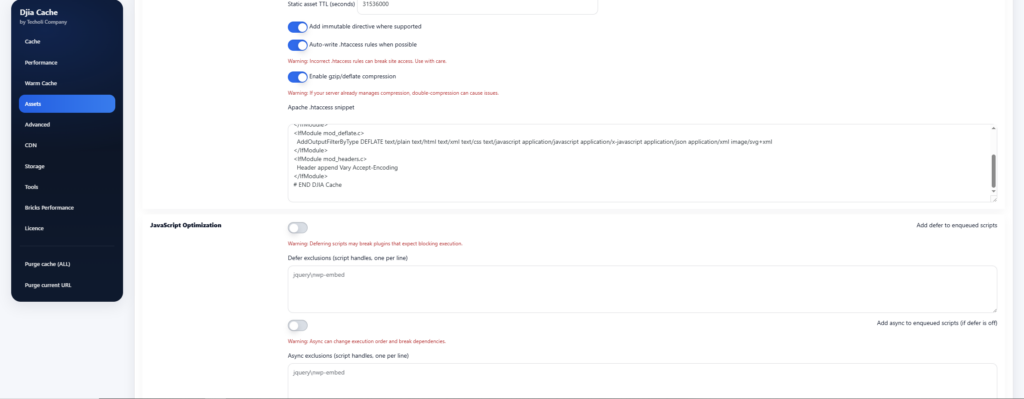
- Go to
Settings → DJIA Cache → Assets - Disable Delay JS.
- Click Save Changes.
- Reload your website and check if the issue is fixed.
If the problem remains:
- Disable Defer JS.
- Save and test again.
If the issue still persists:
- Disable Minify CSS.
- Save and check the site again.
This process helps identify which optimization feature is responsible.
Step 3 — Add Exclusions
Once you identify the problematic feature, you can keep the optimization enabled while excluding the specific script or style causing the issue.
Steps
- Open your website in a browser.
- Press:
F12
to open Developer Tools.
- Go to the Console tab.
- Look for red error messages.
These messages often contain the script handle or filename causing the problem.
Example:
jquery-core
- Add the script handle or keyword to the Exclusions list inside the Assets tab.
- Click Save Changes.
This allows the optimization feature to remain active while preventing conflicts.
3. Verification
To verify the fix:
- Open your website in a Private / Incognito window.
- Visit multiple pages such as:
- Home page
- Blog page
- Shop page
- Product pages
- Confirm that the layout loads correctly across the site.
4. Important Notes
???? Tip
Always enable optimization features one at a time and test your site after each change.
This makes it much easier to identify which setting is causing issues.
Avoid enabling multiple aggressive optimizations simultaneously without testing.
Related documentation
Further reading: The Chrome DevTools console.