
DJIA Cache – Bricks Tab
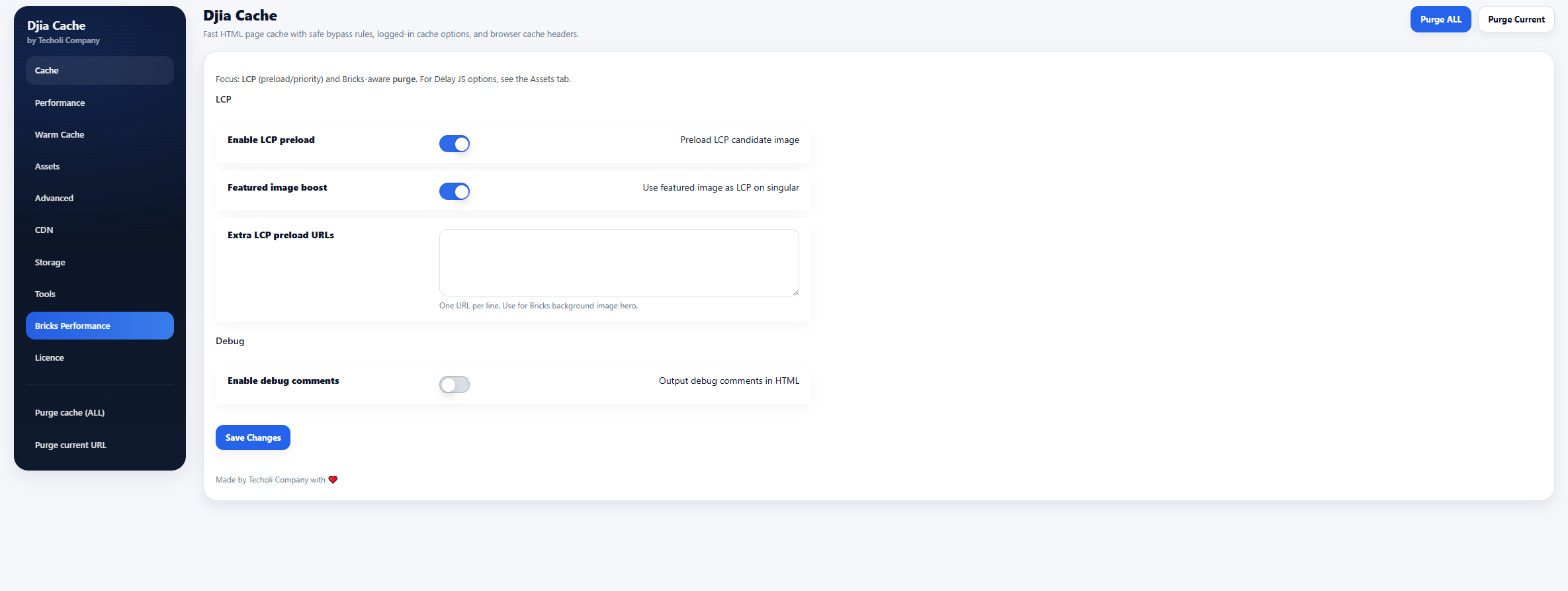
The Bricks tab provides optimizations specifically designed for websites built with Bricks Builder.
For the full picture of how DJIA Cache behaves on a Bricks site, see the Bricks Builder cache plugin page.
These Bricks tab options focus on improving Largest Contentful Paint (LCP) and ensuring cache behavior works correctly with Bricks layouts and dynamic components.
Sections included in this tab:
Note:
JavaScript delay settings are located in the Assets tab.
LCP optimization in the Bricks tab
This section of the Bricks tab improves Largest Contentful Paint (LCP) by prioritizing the most important image on the page.
LCP is one of Google’s Core Web Vitals and significantly affects performance scores and user experience.
Enable LCP preload
Preloads the image that is likely to be the Largest Contentful Paint element.
Example:
<link rel="preload" as="image" href="image-url.jpg">
Preloading ensures the browser begins downloading the LCP image earlier, improving rendering performance.
Benefits:
- faster hero image loading
- improved Core Web Vitals scores
- reduced LCP time
Featured image boost
Uses the featured image as the LCP candidate on singular pages.
Applicable to:
- posts
- pages
- custom post types
This ensures the featured image is prioritized during page loading.
Extra LCP preload URLs
Allows you to manually define additional images that should be preloaded as LCP candidates.
Each URL should be placed on a new line.
Example:
/wp-content/uploads/hero-image.webp
/wp-content/uploads/banner-image.webp
This option is useful for Bricks hero sections that use background images, which may not be automatically detected as LCP elements.
Debug Tools
The Bricks tab provides debugging utilities for troubleshooting optimization issues.
Enable debug comments
Outputs debug comments inside the generated HTML.
These comments help developers identify:
- caching behavior
- LCP detection
- optimization rules applied by DJIA Cache
Example debug output:
<!-- DJIA Cache: LCP preload applied -->
⚠ Debug comments should be used only for troubleshooting and disabled on production sites once testing is complete.
Finding the LCP element before you change anything
Every option in the Bricks tab assumes you already know which element Google treats as your Largest Contentful Paint. Open the page in Chrome, run a Lighthouse report, and expand the Largest Contentful Paint element entry under diagnostics. It names the exact node, which on a Bricks site is usually a hero image, a background image on a section, or the first heading on a text-only layout.
Check a few page types, not just the home page. An archive, a single post and a WooCommerce category page often have three different LCP elements, and preloading the wrong one adds a request without improving the metric.
When Bricks hides the LCP element
Automatic detection in the Bricks tab looks for an image tag near the top of the document. Bricks often renders the largest visual as a CSS background on a section or container instead, so there is no image tag to find and no preload is added.
That is what Extra LCP preload URLs is for. Copy the file path from the section background setting in the builder, paste it into the field one URL per line, and save. Reload the page with the browser cache disabled and confirm the preload tag appears in the document head before you measure again.
Keep the list short. Each entry tells the browser to fetch that file at the highest priority, so listing five images delays the one that actually matters.
Cache clearing when you save in the builder
A Bricks template can appear on hundreds of URLs, so editing a header, footer or single-post template changes far more than the page you have open. DJIA Cache clears the full page cache when a Bricks template is saved, which means the front end shows your change without a manual purge.
The builder itself is never served from cache. Requests carrying the bricks query parameter are in the bypass list by default, so opening a page for editing neither reads a cached copy nor writes one.
If a change still does not appear, the cache above the plugin is the usual cause. Purge your host cache and your CDN as well, then reload in a private window. Fixing broken layouts covers the case where the page loads but renders incorrectly.
Related documentation
- Bricks Builder cache plugin
- Page Builder, Theme, and Plugin Integrations
- DJIA Cache – Assets Tab
- DJIA Cache – How To Fix Broken Layouts
Further reading: Bricks Builder.