
DJIA Cache – How To Exclude Pages & Content
Some pages must always be generated fresh. This guide shows how to exclude pages, single posts and even individual sections of a layout from the cache, using three methods that can be combined.
This guide explains how to exclude specific pages, URL patterns, or dynamic sections from being cached by DJIA Cache.
Quick Start
Use these methods when your website contains dynamic content that should never be cached.
Examples include:
- shopping carts
- user dashboards
- profile pages
- live counters
- personalized content
Requirements:
- Access to the WordPress admin panel
- Or access to your page builder (Bricks, Elementor, etc.)
1. The Problem
By default, DJIA Cache treats pages as static content.
If a page contains user-specific or constantly changing data, caching it may result in:
- outdated information
- incorrect data shown to users
- mixed session content
For example:
- one user’s cart appearing for another user
- outdated counters or dynamic values
To prevent this, specific pages or sections must be excluded from caching.
2. Methods to exclude pages and content
There are three main ways to exclude pages from DJIA Cache.
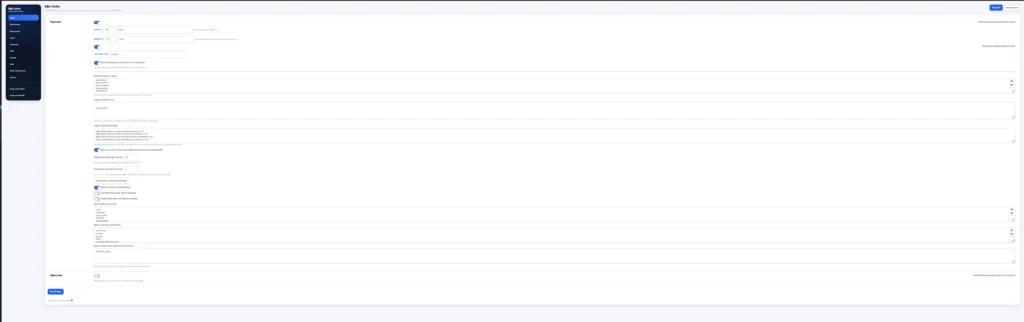
Method 1 — URL Bypass (Global)
Best for excluding entire pages or sections of the website based on their URL.
Steps
- Go to
Settings → DJIA Cache → Cache - Scroll to the Bypass paths field.
- Add the path you want to exclude.
Example:
/my-dynamic-page/
/user-dashboard/
/live-stats/
- Place one path per line.
- Click Save Changes.
Any page matching those paths will automatically bypass the cache.
Method 2 — djia-nocache CSS Class (Page Builders)
Best for excluding pages while using page builders such as:
- Bricks Builder
- Elementor
- Gutenberg blocks
Steps
- Open the page in your page builder.
- Select a main container or section element.
- Add the CSS class:
djia-nocache
- Save the page.
When DJIA Cache detects this class in the page HTML, it will skip caching for the entire page.
Method 3 — HTML Comment (Classic Editor)
Best for manual control inside HTML editors or Classic Editor.
Steps
- Edit your post or page.
- Switch to Text / HTML view.
- Add this comment anywhere inside the page:
<!--DJIA_NOCACHE-->
- Save the page.
DJIA Cache will detect this comment and disable caching for that page.
3. Verification
To confirm that a page is excluded from cache:
Step 1
Open the page in a Private / Incognito browser window.
Step 2
Open Developer Tools:
F12 → Network Tab
Step 3
Refresh the page.
Step 4
Click the main document request and check the response headers.
You should see:
X-Djia-Cache: BYPASS
Instead of:
X-Djia-Cache: HIT
This confirms the page is not cached.
4. Important Notes
DJIA Cache automatically excludes common dynamic pages, including:
- WooCommerce Cart
- WooCommerce Checkout
- WooCommerce My Account
- WordPress login pages
- REST API endpoints
You do not need to manually exclude these pages.
Related documentation
Further reading: WooCommerce.